Integration with Active Directory
If the accounts of your operators and administrators are already set up in your local Active Directory , you can import them into users within our system. They will be able to log in to their personal accounts using the same usernames and passwords.
For the integration, you will need to install a gateway program within your local network and grant it access to your Active Directory (hereinafter AD). The gateway will retrieve necessary groups from AD and send user data to the Getscreen.me server. Our server will then add them to your account.
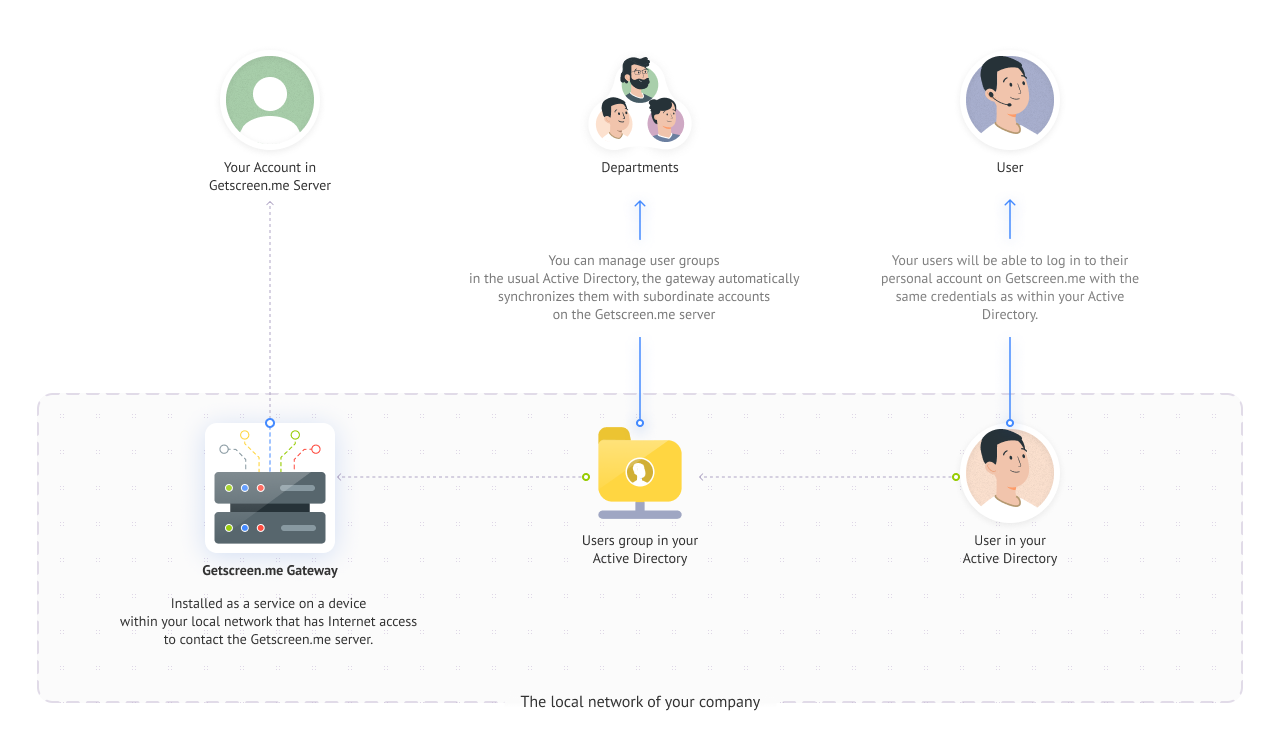
Now let's get into more detail about what needs to be done to make this work.
Gateway Setup
Installing the Gateway
Go to the Gateways tab under Settings in your personal account and click Add gateway.
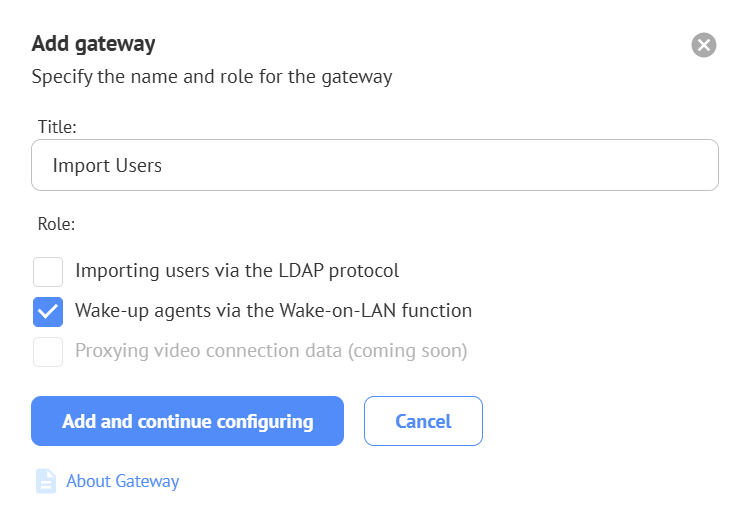
In the pop-up window, enter a name for the gateway, check the box Importing users via the LDAP protocol, and click Continue:
A window with installation and configuration instructions will open:
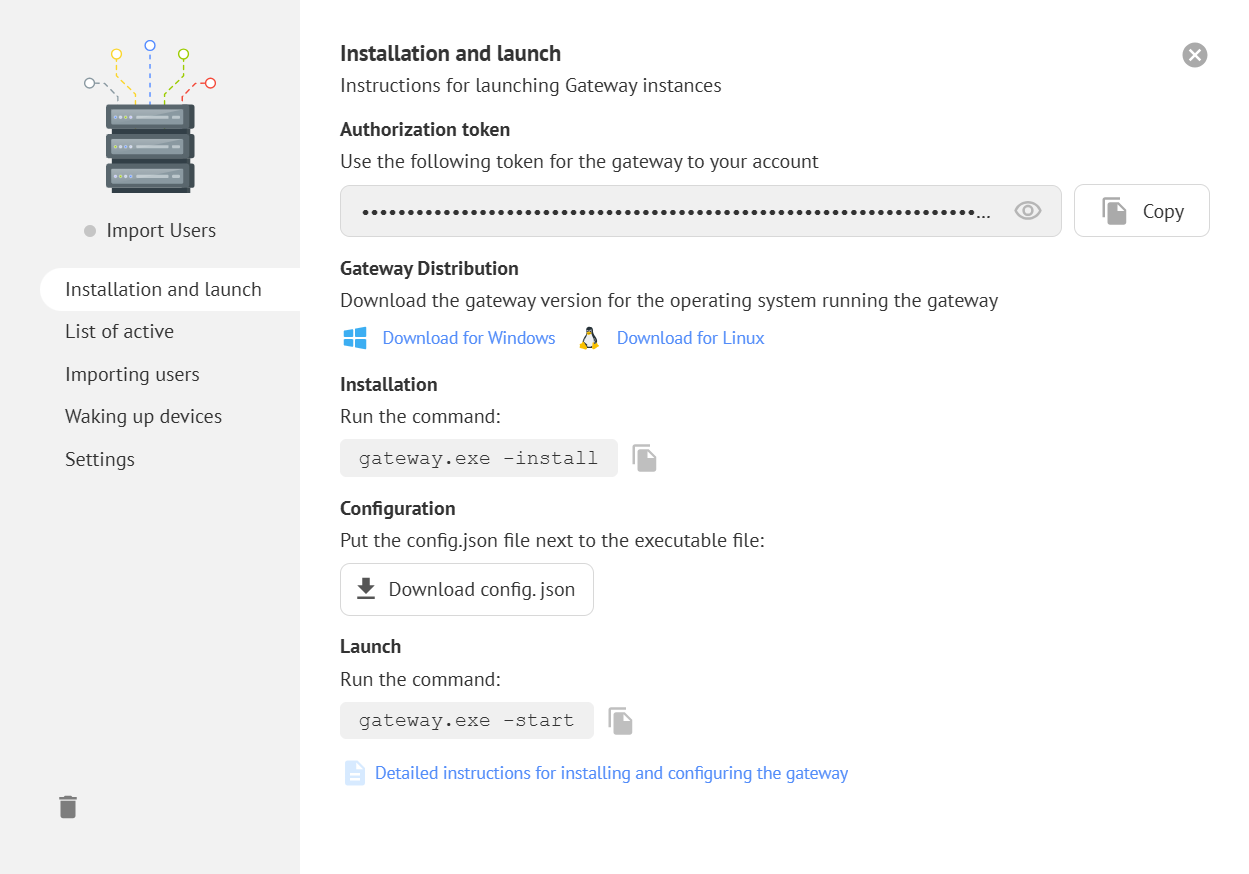
Download the gateway package for your operating system, place it in a permanent directory, and install it with the following command:
Execution Permission
On Linux systems, you need to make the file executable with: chmod +x ./gateway
Then download the config.json file and place it in the same directory as the executable file.
What does the config file contain?
The config.json file stores the server address and a token that links the gateway to your account.
Start the gateway with:
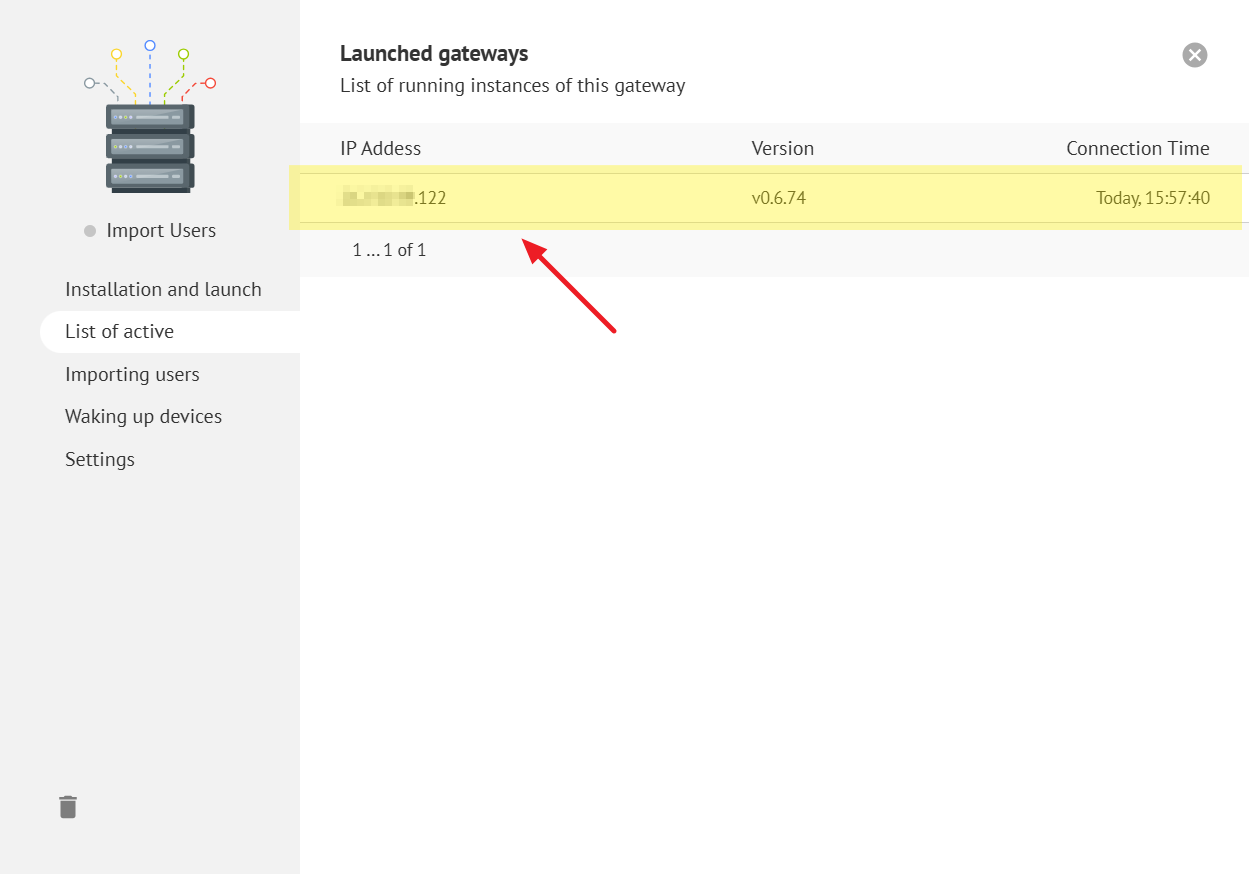
Your running instance will then appear in the Launched gateways tab of the gateway card:
Other available gateway commands:
| Name | Description |
|---|---|
./gateway -install | Install service |
./gateway -uninstall | Uninstall service |
./gateway -start | Start service |
./gateway -stop | Stop service |
What is Gateway App?
Learn more about Gateway setup and configuration in the detailed guide.
Configuring Access to the AD Server
Now you need to grant the gateway access to your AD server so it can retrieve your list of users.
In the gateway card, go to the Importing Users tab, enable the Enable Import checkbox, and enter the credentials for accessing the AD server.
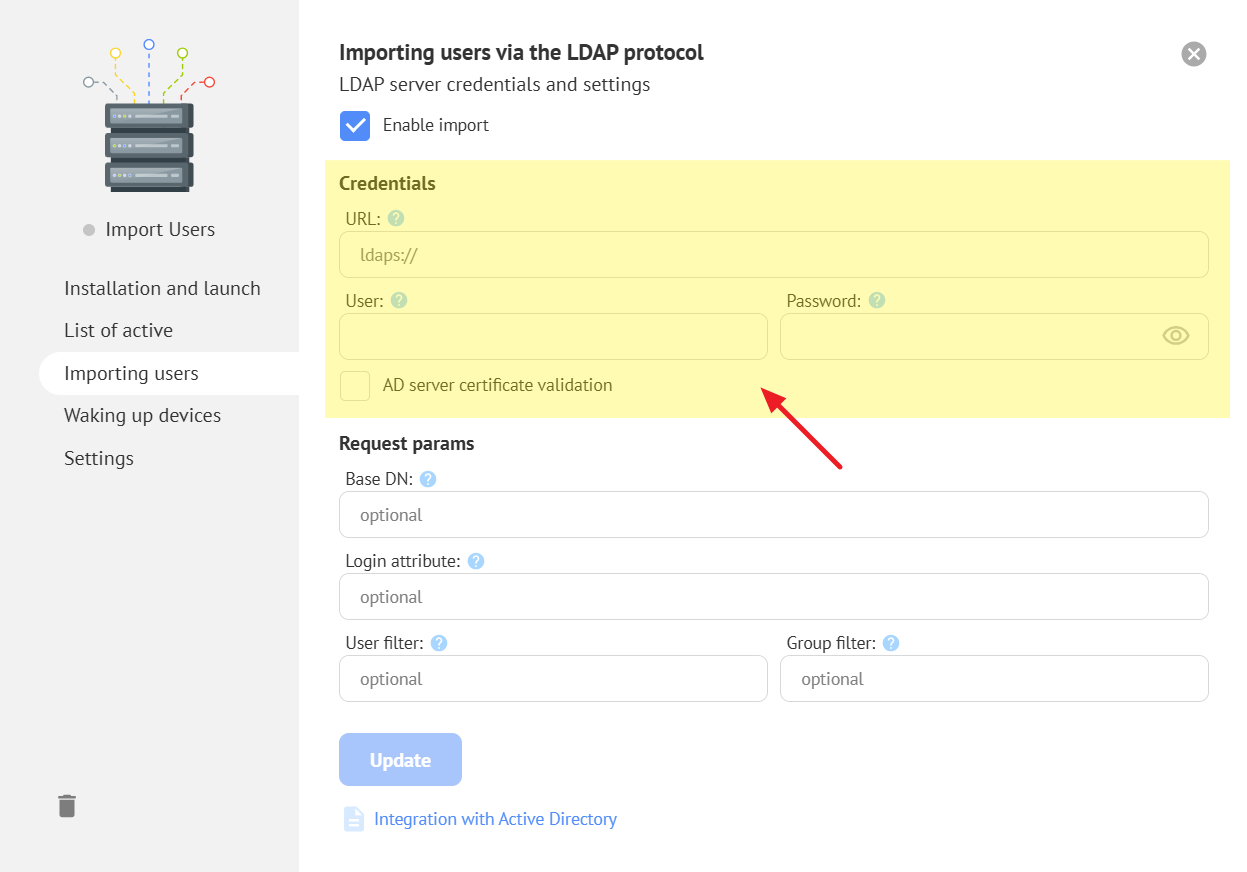
Address of the AD Server
In order for the gateway program to fetch data from Active Directory, you need to specify the path to your AD server. It can be a domain or an IP address with protocols ldap:// (using the default port 389 for TCP connections) or ldaps:// (using the default port 636).
Username and Password
You also need to prepare a service account in your Active Directory. Gateway will use this account to read the AD/LDAP structure. We recommend creating a separate account with read-only permissions in the domain. To avoid synchronization failures, make sure the password does not expire.
For Microsoft Active Directory, the value can look like this: domain.local\username.
Query Parameters
You can also specify additional parameters for retrieving users:
| Param | Description |
|---|---|
Base DN | The Base DN is the distinguished name for the LDAP database, based on the specified FQDN of the LDAP server. |
Login attribute | LDAP attribute used to determine the user’s login field |
User filter | Additional filter to retrieve the list of AD users |
Group filter | Additional filter used to retrieve the list of AD groups. LDAP user synchronization is group-based, so we recommend creating one or more security groups in the domain, adding the required administrators as group members, and then specifying these groups in the filter. This is also required to limit the number of objects selected for synchronization if you find errors like LDAP user synchronization is group-based, so we recommend creating one or more security groups in the domain, adding the required administrators as group members, and then specifying these groups in the filter. This is also required to limit the number of objects selected for synchronization if you find errors like LDAP size limit was exceeded in the Gateway logs. |
Example values for Microsoft Active Directory
| Param | Value |
|---|---|
Base DN | dc=domain,dc=local.For example, if the FQDN is ldap.synology.com, the Base DN would be dc=ldap,dc=synology,dc=com. |
Login attribute | userPrincipalName, mail, and others.See the possible values in the User Naming Attributes guide. |
User filter | (&(objectCategory=person)(objectClass=user)) — users with the person category and the user class |
Group filter |
|
Checking the Server Connection
If everything is configured correctly, when running in console mode, you will see logs like this:
- Successful connection establishment with the Getscreen.me server:
- Successful connection establishment with your AD server:
13:51:56.059 INFO LDAP connected to 'ldaps://192.168.0.1' as 'ADFS\Administrator' base: 'DC=ADFS,DC=TEST,DC=ME'
Selection of Groups for Import
Now that the gateway is successfully running, you need to select the groups in AD that need to be imported into the Getscreen.me account.
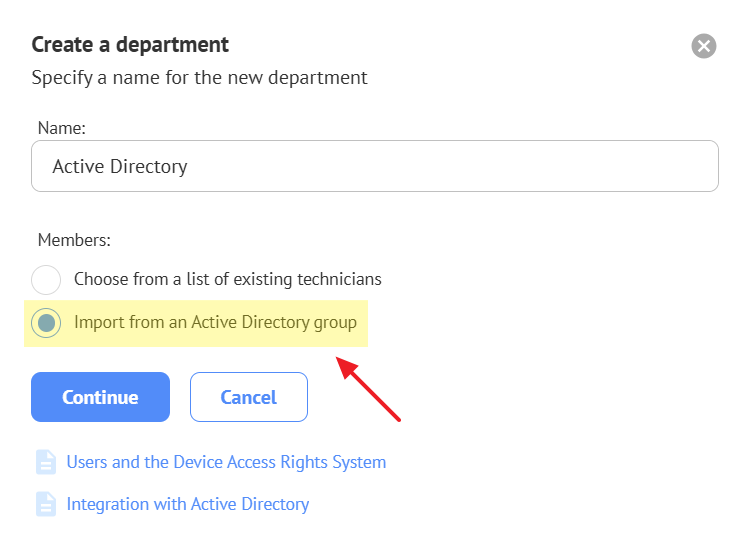
To do this, you need to create a department in the Teams section. In the Users tab, select the radio button Import from an Active Directory group and choose the desired group.
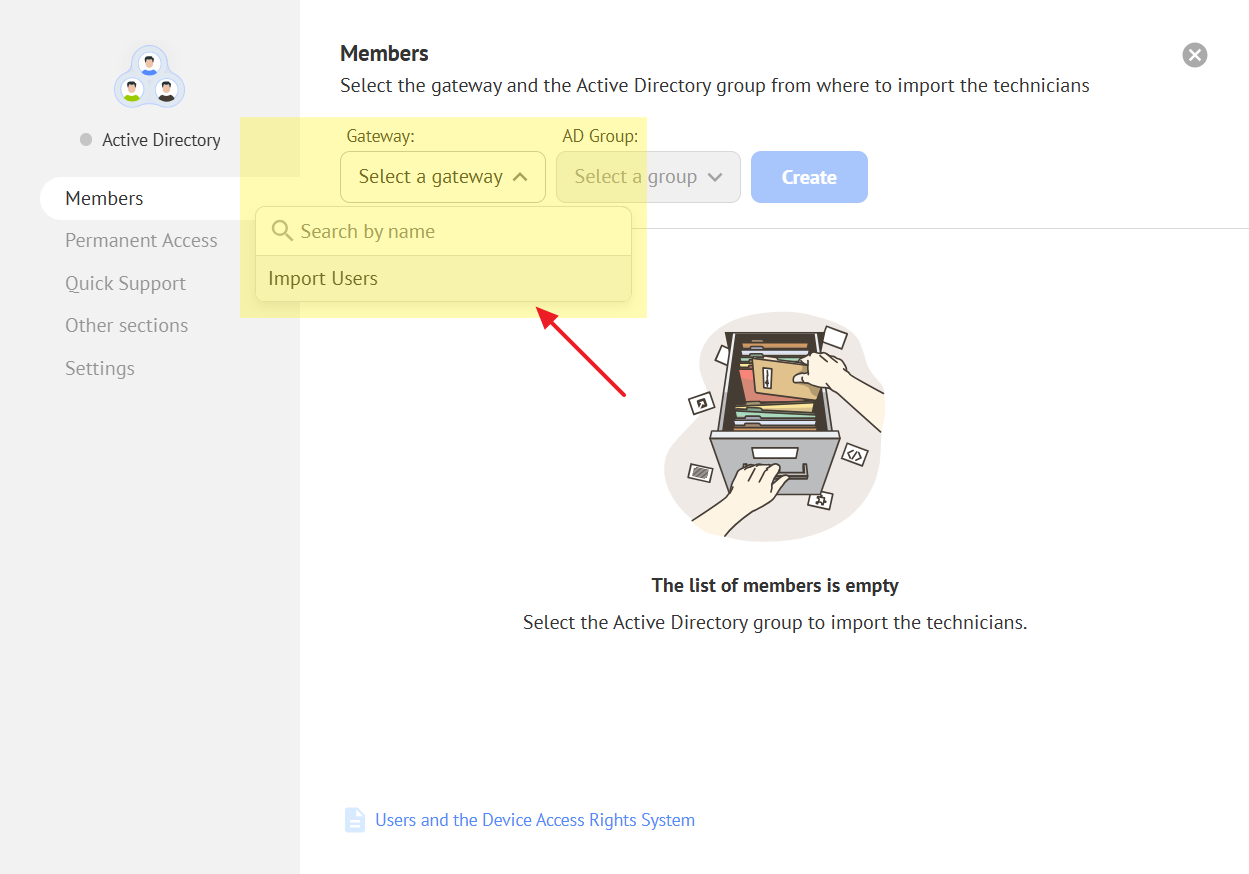
This way, the group from AD will be linked to the department in Getscreen.me. After creating the department, your users will be imported into it and inherit all the permissions of the selected department.
Departments that are linked to a group from AD will be marked with the icon, and all users will inherit the permissions of this department.
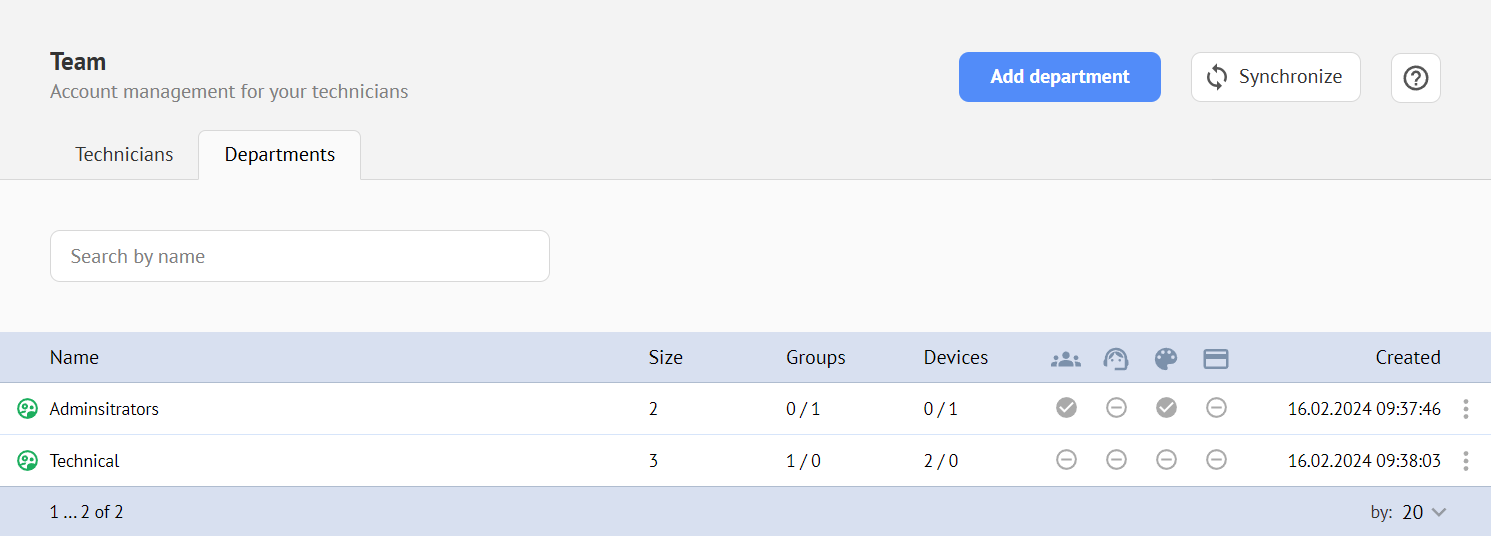
The imported users will be marked with the icon and will not be available for editing.
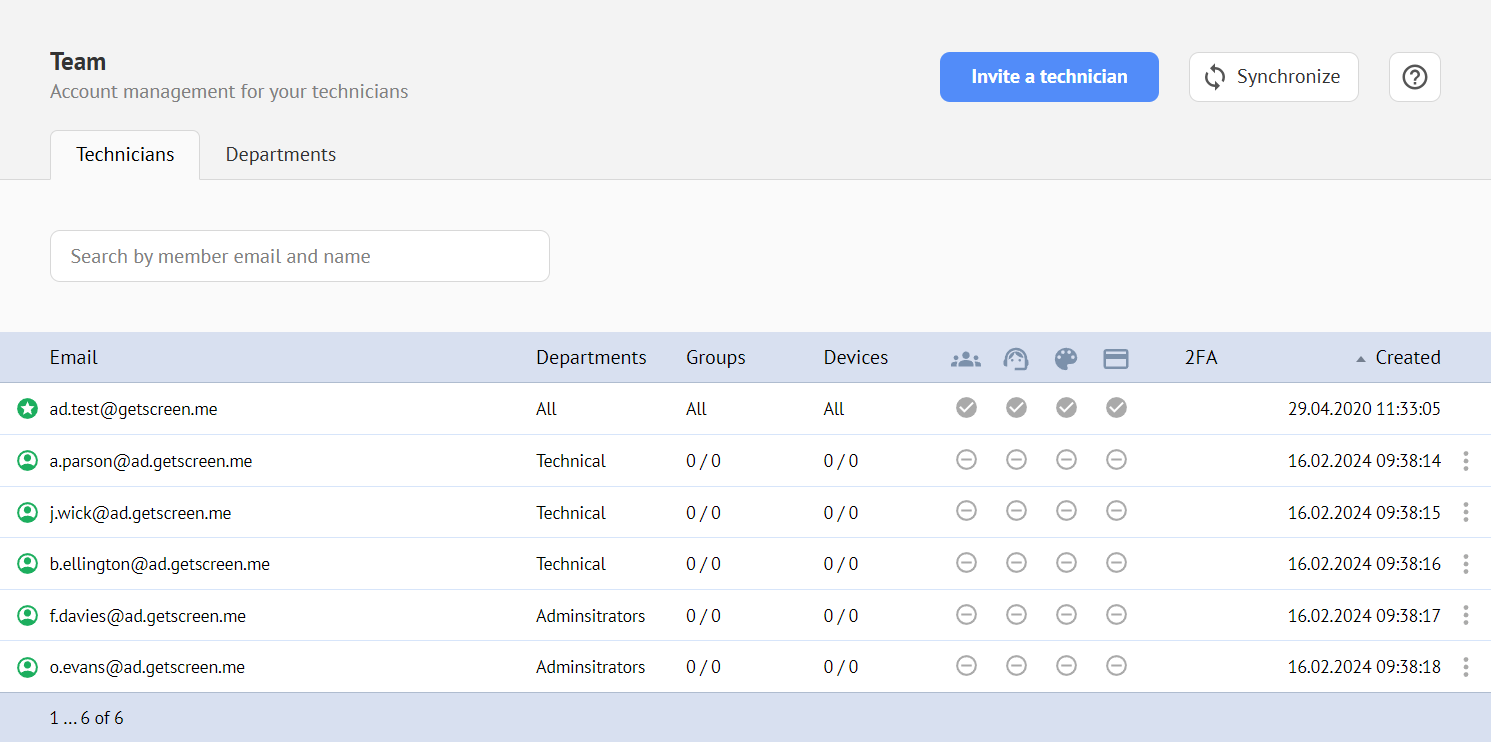
Synchronization
Synchronization of imported users between your Active Directory and the Getscreen.me server will be performed automatically at the specified frequency in the settings, as well as manually by clicking a button in the interface:

Automatic Synchronization Settings
You can override the default synchronization settings on your Settings page in the Automatic synchronization with Active Directory block.
Frequency
The time interval at which automatic synchronization of users from Active Directory will be triggered if integration is enabled. The minimum value is 5 minutes, and the maximum is 7 days.
User Timeout
The time after which department users will be disabled if synchronization of the department fails. The minimum value is equal to the synchronization period, and the maximum is 30 days. By default, it is 10 times the synchronization frequency.
Errors and Event Log
When errors occur, the synchronization button will have a corresponding indicator:

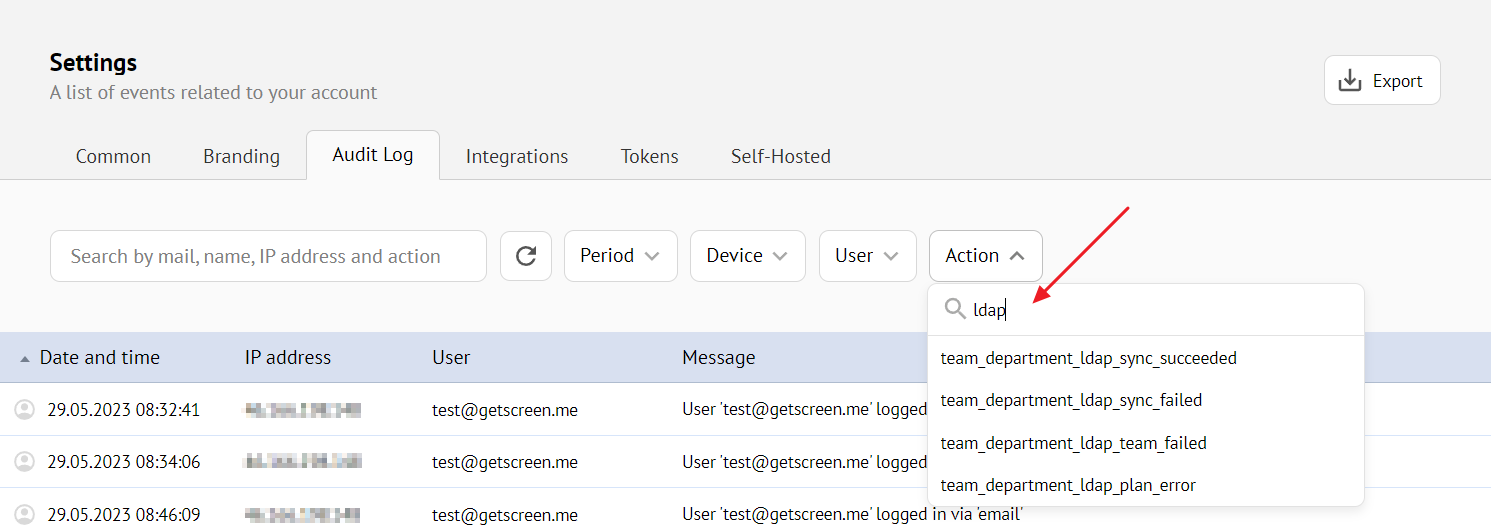
You can find all integration events with the gateway in the general event log. Use actions prefixed with team_department_ldap_* for event filtering: